
How to Set Up Your First Sales Pipeline in Pipedrive

Result: a working five-stage CRM pipeline with contacts and deals, Gmail connected, and a task that creates itself whenever a deal moves to “Proposal sent”.
Tools: Pipedrive and Gmail.
Prerequisites: a list of your current clients (a spreadsheet is enough), a personal Gmail inbox, and about an hour.
A CRM pipeline, also known as a sales pipeline, is the sequence of stages a deal moves through, from first contact to payment. A Pipedrive pipeline looks like a board: one column per stage, one card per deal. Below we build a sales pipeline in Pipedrive from scratch on a new account and point out the places where Pipedrive behaves differently from what you might expect.
What you will have at the end
- a pipeline with five stages named for your own process: New inquiry, First conversation, Brief agreed, Proposal sent, Payment pending;
- five deals with contact people and organizations: one added by hand, four imported from a spreadsheet;
- a connected Gmail inbox, with a client’s email linked to their deal;
- an automation: as soon as a deal moves to “Proposal sent”, Pipedrive creates a follow-up task and assigns it to the deal owner;
- a morning board that shows which deals have no next step.
We ran the full sequence on a new Pipedrive account on November 10-11, 2026, so the steps and interface labels below reflect what we saw on screen.
Who this guide is for
This guide is for a small business owner or a sales manager on a team of one to five people who currently tracks clients in a spreadsheet or just in email, and is setting up a CRM for the first time. No CRM experience is needed: we explain each new term when it first appears.
If you are still choosing between Pipedrive and HubSpot, read HubSpot vs Pipedrive first. If you would rather see Pipedrive as a whole before configuring it, start with the Pipedrive review. If you already use HubSpot, the companion guide is how to set up your first CRM pipeline in HubSpot.
This setup will not fit you if you need several mailboxes per user or a shared team inbox. Those start on higher plans (details below).
What you need
- A Pipedrive account. Stages, import, and rotting alerts (warnings for deals that stall) are available from the cheapest plan, Lite. Gmail sync and automations are available starting with Growth, so the full scenario needs Growth. At US prices (checked November 10, 2026), Growth costs $39 per user per month on annual billing and $49 on monthly billing; Lite costs $14 and $24.
- A personal Gmail inbox. Growth includes one synced email account per user. Premium ($59 per user per month on annual billing) raises this to three accounts per user and adds one team inbox; Ultimate allows five accounts per user and five team inboxes.
- A client spreadsheet. A CSV file, or a table you can export as CSV. Ours had four columns: deal title, contact person, organization, and stage. If everything sits in one column, split it first so the import runs without corrections.
- About an hour. A breakdown by phase follows.
You can sign up on the Pipedrive website.
How long it takes
This is our estimate from running the sequence, not a stopwatch measurement.
| Phase | What you do | Approximate time |
|---|---|---|
| A. Setup | Pipeline, stages, rotting | 10 minutes |
| B. Data | First deal, import, next activities | 15 minutes |
| C. Gmail | Connect and link an email | 15 minutes plus waiting for the first sync |
| D. Automation | Template and check | 10 minutes |
| E. Daily routine | Board review | 5 minutes |
About an hour in total. The biggest variable is spreadsheet size: four rows import in minutes, while a list of a hundred clients deserves a careful look at column mapping.
Step-by-step instructions: how to set up a sales pipeline in Pipedrive
Step-by-step guide: set up your first CRM pipeline in Pipedrive with five stages, a spreadsheet import, Gmail sync and an automatic follow-up task.
Total Time: 1 hour
Step 1. Sign up and see what Pipedrive created for you
Phase A. Set up the pipeline
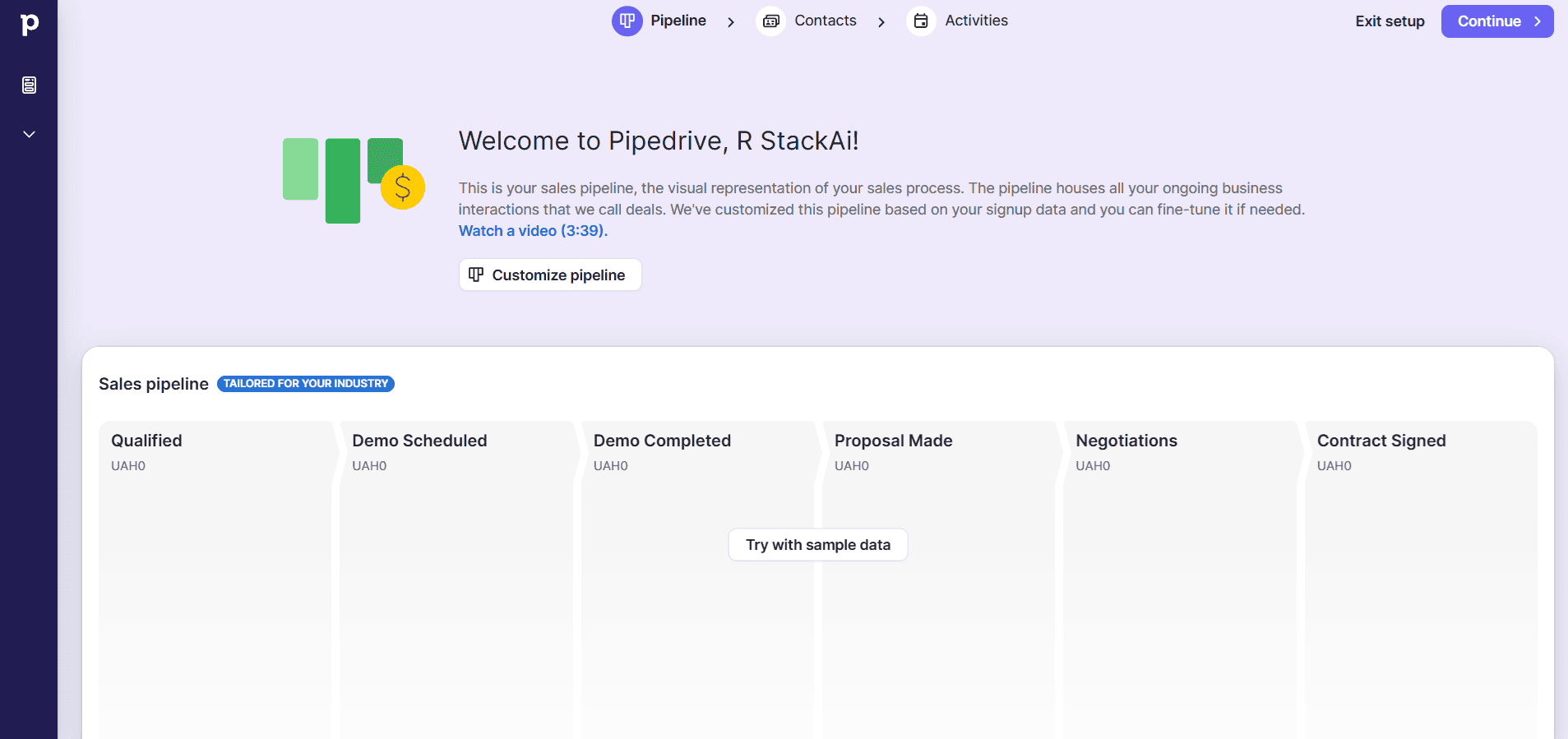
Create an account and wait for the setup wizard. It helps you set up Pipeline, Contacts, and Activities, and offers “Try with sample data”; we skipped it because we were using our own data.
The board then already contains a pipeline called “Tailored for your industry” with six stages: Qualified, Demo Scheduled, Demo Completed, Proposal Made, Negotiations, Contract Signed. The account also has a second pipeline, Onboarding pipeline. Two things were decided for us: the interface language (English here) and the account currency (hryvnia). We saw no choice during sign-up.
You can change the language under Settings, Personal preferences, Language. Click Save at the bottom of the page afterwards: selecting a language in the list does not save it. The same page has a default currency field: change it if you will track deal values in another currency.
Check: the board shows a pipeline with the starter stages.
Step 2. Keep five stages and name them for your process
Open the pipeline editor (the pencil next to the pipeline name on the board). Rename the stages to match your process and delete the extra one. We ended up with five: New inquiry, First conversation, Brief agreed, Proposal sent, Payment pending. Deleting an empty stage asks for confirmation in a separate dialog, so removing one by accident is hard.
Choose the last stage name with care. A deal that has been paid for does not stay on a stage: you mark it as Won, and it leaves the board. “Payment pending” holds only deals that agreed but have not paid yet.
Check: the board shows five columns with your names.

Step 3. Turn on rotting for the stage where deals tend to stall
Rotting is a red marker on a deal that has stayed in the same stage too long without an update. In the same editor, each stage has a “Rotting in (days)” toggle. It is off by default, with a value of 0. We switched it on for Proposal sent and set 5 days, because that is where clients most often go quiet.
Do not confuse rotting with the yellow warning on a card. Yellow means the deal has no scheduled activity at all. Rotting means the deal has not been updated for a long time. They are two separate signals.
Our test deals were brand new, so we did not see a red marker on them. According to Pipedrive’s documentation, the counter resets when the deal is updated, for example, when an activity is marked as done, a note or file is added, or an email is sent or received. To clear rot, schedule a new activity or edit the deal.
Check: the toggle is on and the field shows a number of days.
Step 4. Add your first deal by hand
Phase B. Contacts and deals
Click “+ Deal” and fill in the form: deal title, contact person, and organization. One form creates three records at once: the deal, the person, and the organization. We used Alpha Studio with the contact Alex Alpha. Add a value and an expected close date if you have them.
On this new account, the email field accepted an email address for a new contact without trouble. That is not always the case: on another account we used for the HubSpot comparison, the same field would not let us type an address for a new contact. If that happens to you, add the address afterwards on the contact’s card.
For the Gmail scenario, the contact needs the client’s email address: that is how Pipedrive recognizes incoming emails in Step 8.
Check: the deal appears in the first-stage column, and the contact and organization exist.

Step 5. Import the rest of your clients from a spreadsheet
The file we used:
Deal title,Person name,Organization name,Deal stage
Beta Design,Ben Beta,Beta Design,First conversation
Gamma Consulting,Gina Gamma,Gamma Consulting,Brief agreed
Delta Marketing,Dan Delta,Delta Marketing,Proposal sent
Epsilon Lab,Eva Epsilon,Epsilon Lab,Payment pending
Start the data import and pick People, Organizations, and Deals together, because the file contains all three. The mandatory fields are the person’s name, the organization name, and any deal field.
Pipedrive runs five checks on the file and then shows the column mapping. All four of our columns were matched automatically.
The stage values were not matched automatically. This is the main trap of the step: Pipedrive warns about a field value mismatch, and if you ignore it, all four deals land on the first stage. Open “Map Deal Stage” and drag each value from the file onto the right pipeline stage. We dragged them one at a time and checked after each move, because the layout shifts.
Next comes the duplicate rule. Duplicates are detected only for people and organizations; by default data is merged (“Merge data”), and the alternative is to create multiple records. Our import added 12 records (deals, people, and organizations).
If an import goes wrong, you can undo it with Revert. According to Pipedrive’s documentation, that is usually possible within 48 hours and only while the import log is still kept. We saw the button but did not press it.
Check: the board shows deals on the stages from your file, not all on the first one.


Step 6. Add a next activity to every deal
An activity is a scheduled action on a deal: a call, a meeting, a task. Open each deal card and record the next step with a date. Pipedrive’s rule is simple: every open deal should have a next action. If it does not, the card shows a yellow warning.

Add at least one activity to each of the five deals. Choose the type and date from the real situation: “call on Thursday”, “send the proposal by Friday”.
Check: every card on the board shows an activity icon.
Step 7. Connect Gmail and start the sync
Phase C. Gmail
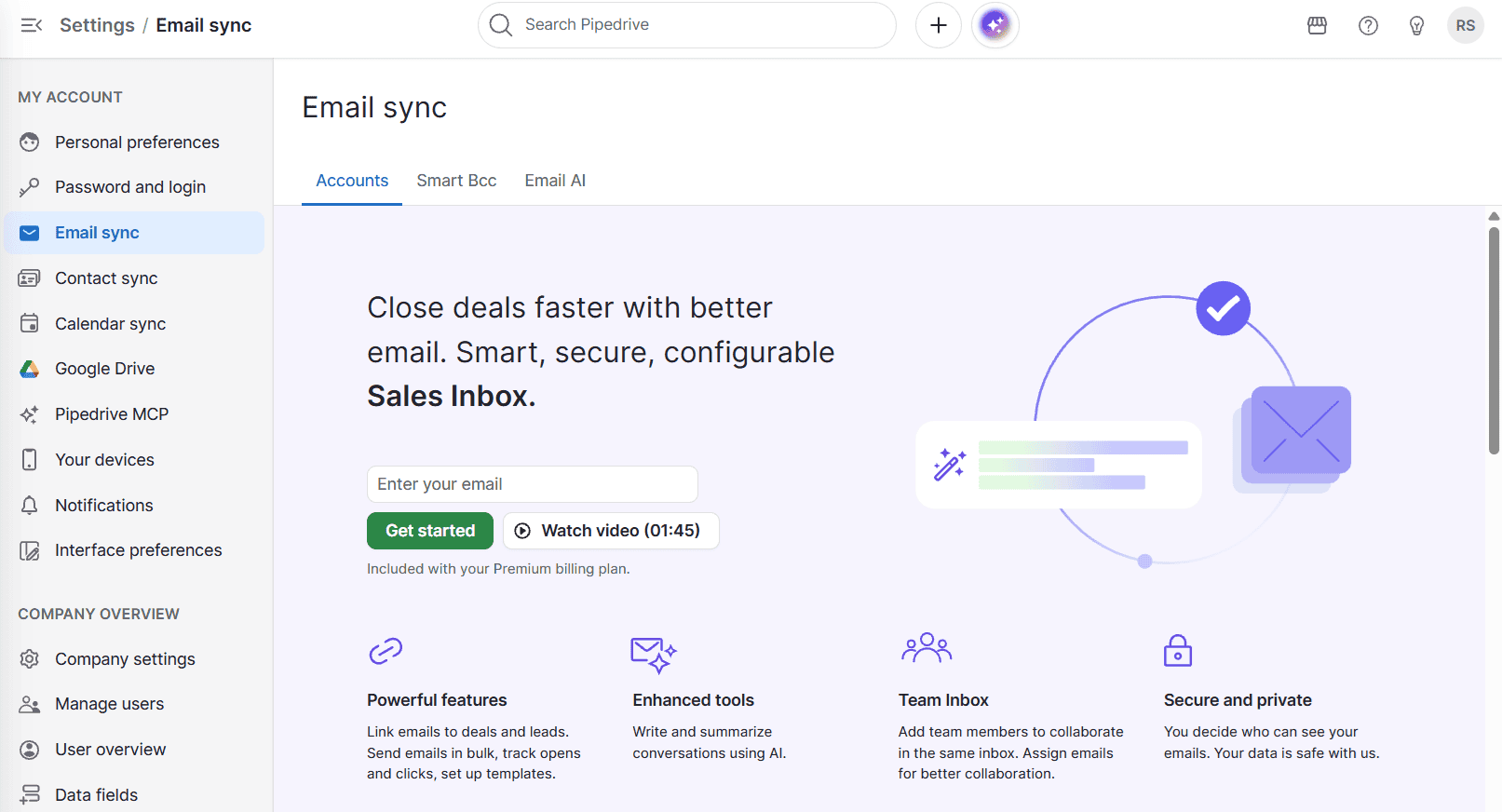
Email is set up in its own section: Settings, Email sync, “Get started”. Pipedrive asks for the account type (Personal or Team; Team is marked as new in our interface) and opens a Google sign-in window where you sign in and grant access. You do not type your password into Pipedrive.
Then a sync settings dialog appears, and it is worth reading three parameters before you continue:
- Who sees the emails. Shared or Private. The default is Private: only the mailbox owner sees the emails. If you work in a team and want colleagues to see client correspondence, choose Shared.
- How much history to import. We kept three days.
- Which folders to sync. All or selected. In our test the whole inbox synced, including Google security notices. If your mailbox mixes personal and client mail, limit the folders.
A note in the same dialog says that automations can use the default email account when the sender is determined dynamically, for example, as the item owner or the user who triggered the automation.
Check: the Email sync section shows the connected mailbox, and emails appear in Sales Inbox.

Step 8. Link a client’s email to their deal
Ask the client to write to the connected inbox. To test it yourself, send an email from the address you saved on the contact. In Sales Inbox the email opens with a “Link to a deal, lead or project” panel.
Pipedrive recognizes the sender when the address matches a contact and suggests the matching deal. In our test, Pipedrive only suggested a matching deal; the email remained unlinked until we clicked the link icon. After that it appeared in the deal history next to the contact and the organization, with a lock icon (because emails are Private), and the card showed a “Reply?” marker.
Do not assume that linking always requires a manual step: on another account with the same inbox, an email was linked automatically. Just check the first email and do not rely on automation blindly.
Check: the email is visible in the deal history.


Step 9. Set up automatic task creation from a template
Phase D. Automation
Open More → Automations, then switch to the Discover tab. Find the template “Schedule follow-ups when deals move stage” (labeled “MOST POPULAR”). The template is private: “Triggered by you only”.
The template form has four fields:
- Stage. The default is First conversation, not the one you need. Choose “Proposal sent”.
- Activity type. Call, Meeting, Task, Deadline, Email, or Lunch. We chose Task.
- Title. For example, “Follow up on proposal”.
- Due date. A dropdown with search (“In one day”, “In 3 days”, “Next Monday”). We chose “In 3 days”.
Next to the due date is a “Skip weekends” option, switched on by default. It changes the date: when we moved the deal on Wednesday, November 11, the third day fell on a Saturday, so the task was due on Monday, November 16. If your team works weekends, switch it off.
Save and activate. Pipedrive names the automation using its creation date and time; you can rename it if you like.
Under the hood, the template is a chain of three blocks: “Deal updated” on the stage field, the condition “Deal stage is Proposal sent”, and “Create activity” with type Task, assignee “Deal owner”, due date “In 3 days (skip weekends)”, and your time zone (taken from your profile).
Check: the Automations page lists the automation as Active.

Step 10. Test the automation on a real deal
Drag the Beta Design deal to “Proposal sent”. Dragging cards on the Pipedrive board worked without any problems. In our HubSpot comparison, the same action did not work.
The task appeared in about five seconds. The task was assigned to the deal owner and linked to both the contact and the organization. It was a Task activity with the title from the template, due on Monday, November 16.
Note the limit here: by default the automation is private and fires only when its author moves a deal. The interface describes it this way: in Manage users you choose who in your company can trigger and view the automation, while only its author and users with global admin permissions can change it. We tested with one user, so we did not see an “everyone” option and did not test it.
Check: the deal card shows a task with the correct due date.


Step 11. Start every morning on the board
Phase E. Daily routine
Open the board and look at the icons on the cards:
- green: an activity due today;
- red: overdue;
- gray: scheduled for later;
- yellow warning: no next step at all.
Start with the yellow and red deals: those are the ones most at risk of slipping through the cracks. Then work through today’s green ones. That is enough for a morning check; you do not need to start with reports.
When a client pays, close the deal as won instead of leaving it on “Payment pending”.
Check: no deals on the board are missing a next step.

Where it is easiest to go wrong
The points below are based either on issues we reproduced during testing or on Pipedrive’s documentation. We cite the source where relevant.
- All imported deals landed on the first stage. Pipedrive does not match stage names automatically. Drag the values onto stages in the Map Deal Stage dialog before the import finishes.
- The automation creates a task on the wrong stage. The template defaults to First conversation. Check the stage field before activating.
- The task got an unexpected date. “Skip weekends” is on by default and moves the due date to the next working day.
- You expect alerts about stalled deals, but nothing appears. Rotting is off by default, with 0 days. You enable it per stage.
- The yellow warning was mistaken for rotting. Yellow means there is no scheduled activity, and the warning disappears as soon as you add one. Rotting means the deal has not been updated for a while. Any update to the deal, including a new activity, resets the rotting counter.
- A client’s email did not land in the deal. Pipedrive may only suggest the deal in the “Link to a deal, lead or project” panel. Link it with the icon, and remember that Private is the default, so a colleague will not see the email.
- Service emails showed up in the sync. The whole inbox syncs unless you select folders.
- The language did not change. Without the Save button at the bottom of Personal preferences, the choice is not stored.
Where to go after your first pipeline
A pipeline with contacts, email sync, and one automation gives you a solid foundation. Here are a few good next steps:
- add a second automation from the same template, for example a reminder after a meeting;
- consider AI lead scoring: AI lead scoring on Pipedrive;
- pick the rest of your stack: the CRM roundup for small business.
As the team grows, revisit the plan: Premium adds three email syncs per user and a team inbox, and raises the limit from 50 to 150 active automations (Pipedrive’s official plan comparison, November 10, 2026).

